How I run my AI coding environment
Choosing what coding agents can access, where they work and how long their environment lasts.
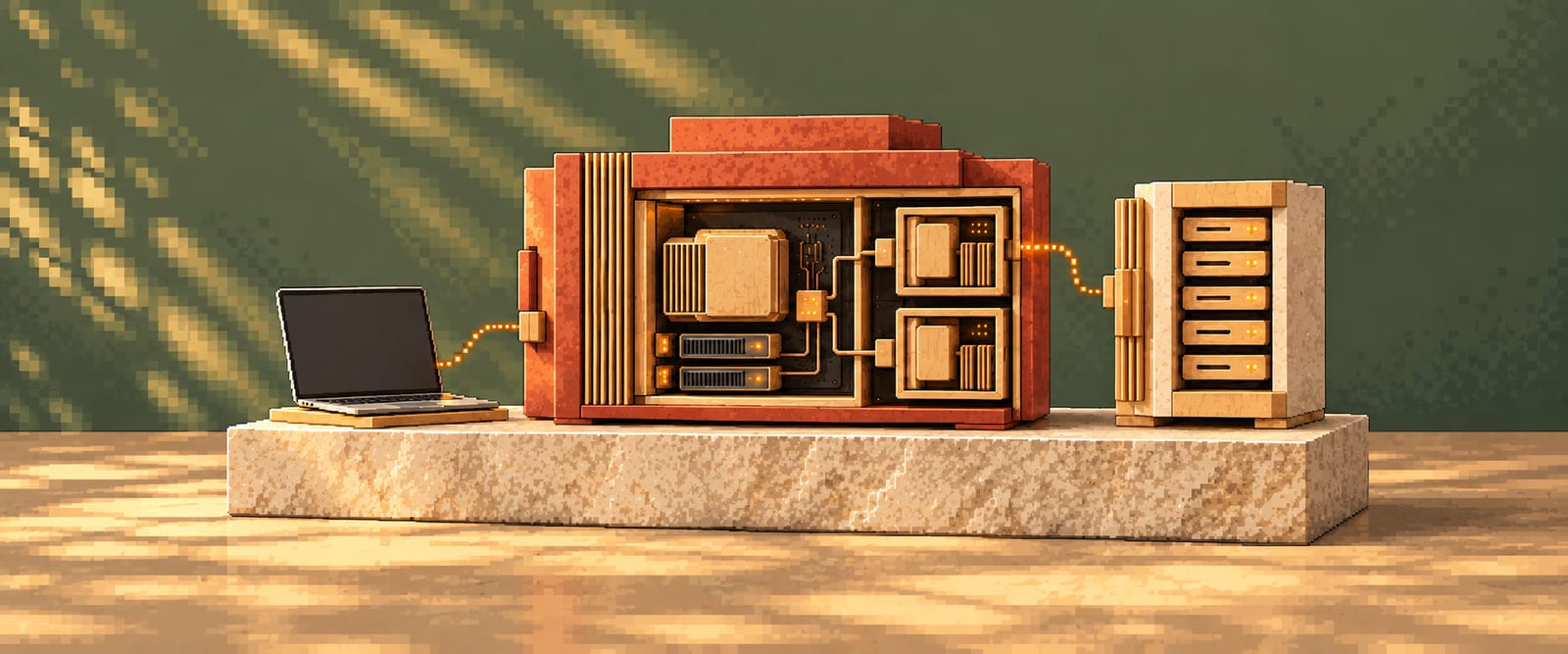
Coding agents need access to files and tools to do useful work. I want to choose which data and systems they can reach. Keeping their work in a separate place lets me make those choices deliberately and limit the consequences of mistakes for the personal systems I depend on.
I run a dedicated Debian workbench VM on my existing Proxmox development server. I choose the data, accounts and connections available to it. Its local state can be rolled back or the environment rebuilt, which also gives me room to experiment with different configurations. I was already comfortable with Proxmox from other projects, so it provided a familiar way to manage that separation.
Remote access and coding tools
Keeping the workbench separate also makes it available independently of my laptop or desktop. T3 Code gives me a browser interface I can reach through Tailscale from different devices. I can leave the work on the workbench and change where I interact with it.
T3 controls the native Codex and Claude Code harnesses installed there: the programs that let a model edit files and run tools. I use each harness’s login with my existing subscriptions. The interface brings those sessions together while each harness retains its own runtime integration.
I also use llmtrim, an optional proxy for configured model requests. Its safe preset reduces input tokens through lossless compression.
Disposable VMs and lab resources
The permanent workbench holds the tools and context I use across projects. Work that needs a separate machine can use a disposable Debian guest. The lab-control skill lets an agent request one, with optional NVIDIA Quadro GPU passthrough or storage from a separate physical TrueNAS machine. A gateway service on the workbench manages the guest and optional storage allocations requested through lab-control. Files can be stored on the guest’s disk or in its optional NAS workspace.
A separate lab network keeps those guests’ connections under explicit control. Firewall rules permit the access needed for tools, workbench SSH and optional NAS storage, while restricting access to management and other private networks. The workbench retains its normal home-network connection; its lab interface does not provide a competing default route.
Each guest and optional NAS workspace belong to a temporary lease. Results I want to keep must be saved outside that lease. Manual release or automated cleanup after expiry or prolonged inactivity removes both allocations.
Setup and verification
I keep machine configuration and installers in workbench-infra. Its runbook connects the manual platform setup to the automated installation, so I can see which parts need my decisions and which can be repeated.
- Runbook Read the setup and acceptance procedures.
- Machine setup Create the network, Debian template and workbench VM manually.
- Installers Install the gateway and toolkit integration.
- Acceptance Check fresh sessions can discover tools and create, access and release a guest.
Provider login and initial T3 pairing remain interactive. The acceptance checks matter because an installed service alone does not establish that an agent can use the environment.
Shared agent instructions and tools
I keep shared instructions, skills and hooks in agent-toolkit. Its installer puts managed copies where each runtime expects them. Registering MCP tools is a separate step from copying guidance: instructions describe how to work, while registration makes tools available to the runtime. Machine-specific lab integration belongs to workbench-infra.
| Owner | Responsibility |
|---|---|
agent-toolkit |
Shared instructions, skills, hooks, runtime adapters, portable MCP registration and the workbench skill |
workbench-infra |
Gateway, lab MCP registration, lab-control skill, runbook, installers and machine services |
| Each harness | Runtime integration and provider login |
| T3 | Interface and session orchestration |
The toolkit’s workbench skill guides agents maintaining the permanent VM, using its machine documents as the authority for configuration and procedures. lab-control handles disposable guests.
- Reach Establish access to the workbench.
- Read and check Read its documents and check the relevant services.
- Change and recheck Make authorised changes and verify the result.
Bringing projects onto the workbench still means preparing their dependencies and giving agents accurate context about where they run. That context also helps them provide previews I can reach. I want to develop a workflow where I can start tasks while away and return to changes ready for review. The separate environment lets me test that workflow and decide what data and access each task needs.
Related article: How I organise a team of agents →