Personal project
Tablescan
A containerised web front end for my 2021 PDF table extraction engine, with a review workflow and several extraction libraries.
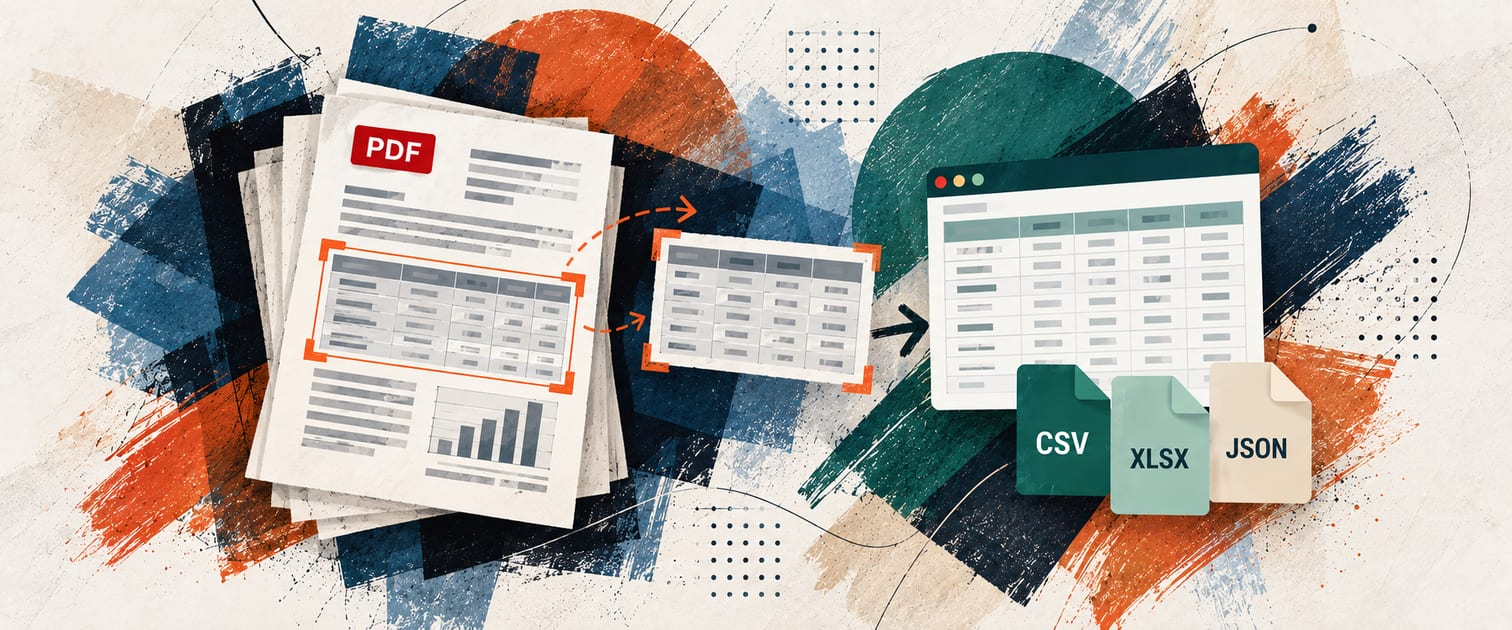
Tablescan gives my 2021 PDF table extraction engine the front end and packaging it never had. It keeps the original detector, a YOLOv3 model that finds table regions on each page image, and adds a web interface for uploading reports, reviewing detections, and downloading results. The front end uses Django templates with htmx and Alpine.js, styled with Tailwind CSS.
Extraction modes
The upload page takes a PDF, an optional page range, and a choice of extraction mode. The advanced options select which extraction libraries run.
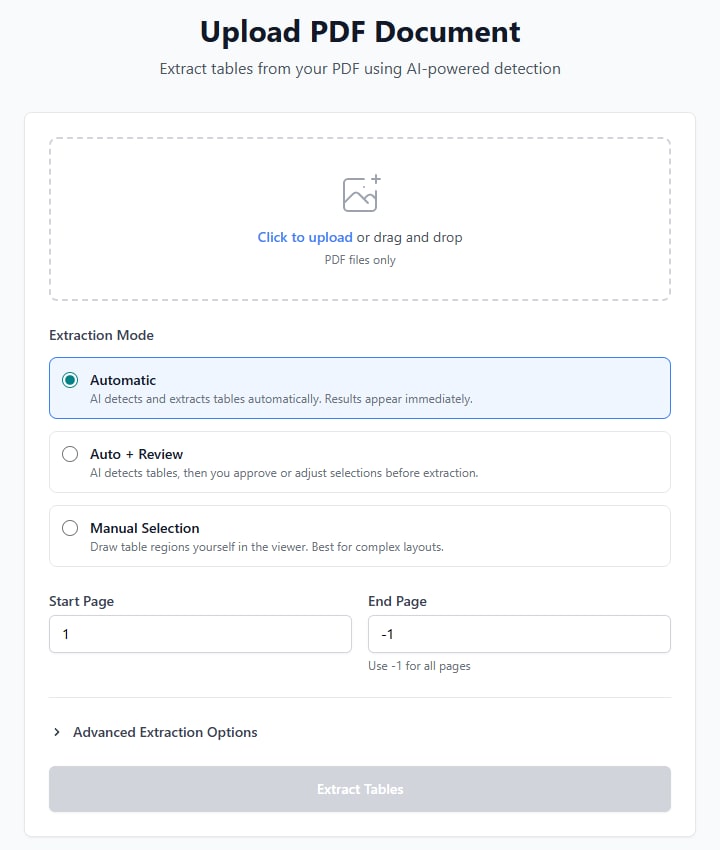
The mode decides where the user comes into the process:
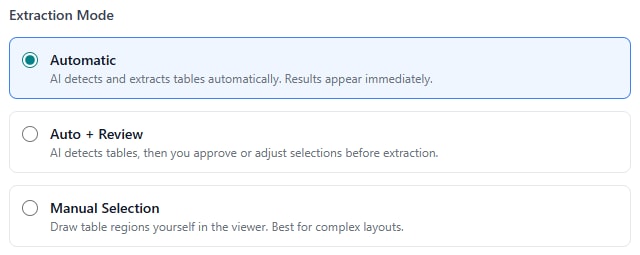
- Automatic: detection and extraction run in one pass, as in the 2021 engine.
- Auto + Review: detection runs, then waits for the user to check each detection before extraction.
- Manual: detection is skipped, and the user draws each table region.
Book Viewer
The review and manual modes open the report in a Book Viewer. It renders the PDF in the browser with PDF.js as a two-page spread, with zoom and page navigation.
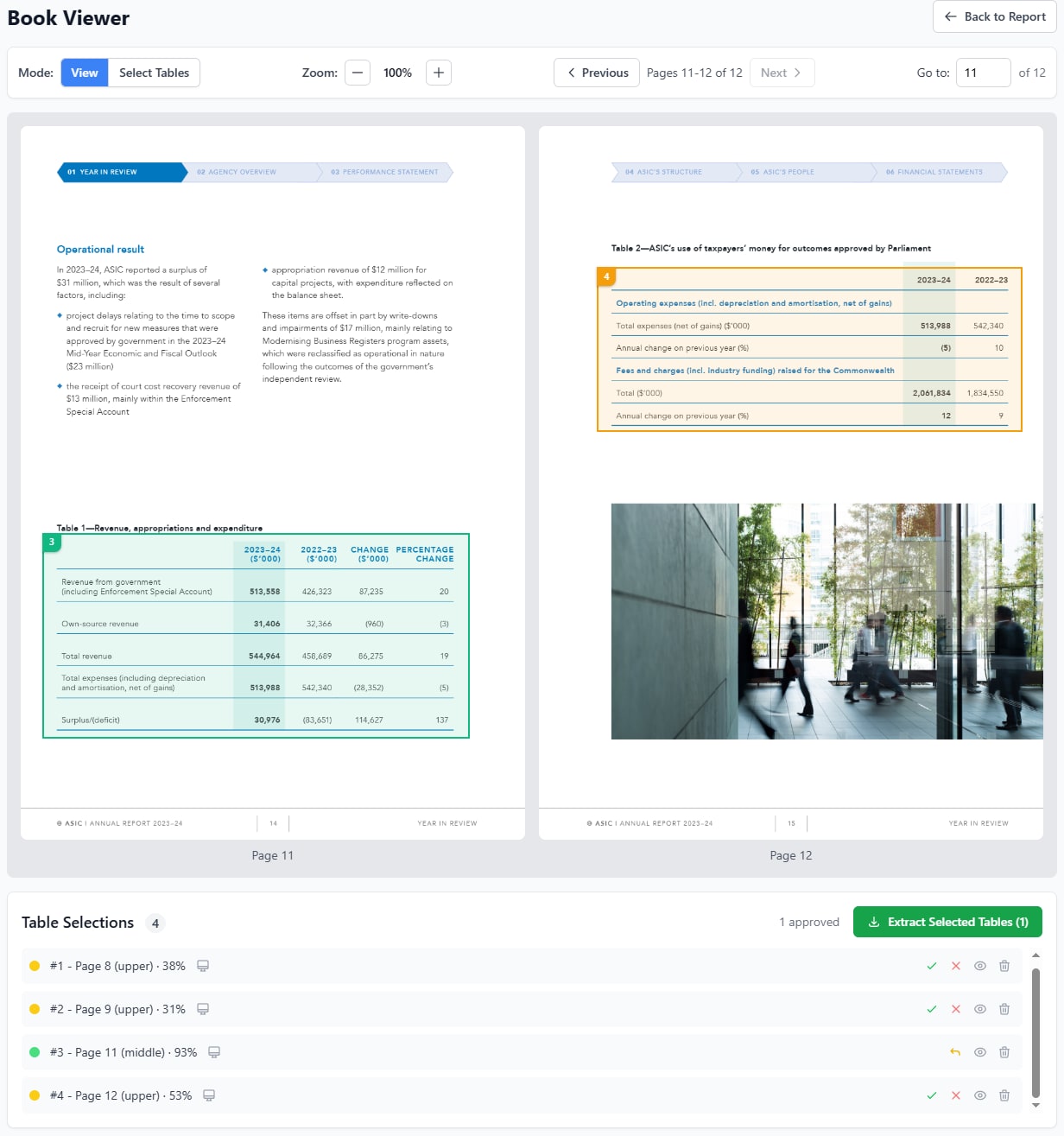
Each detection appears on the page as a numbered box. Approved detections are outlined in green and pending ones in orange.
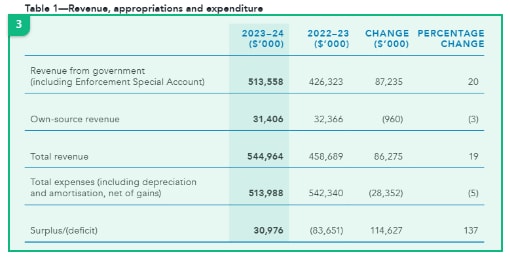
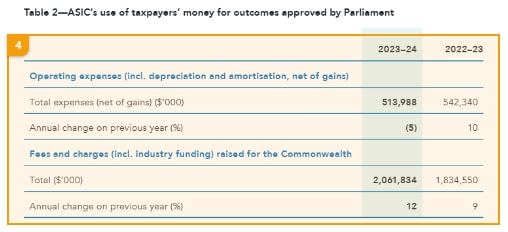
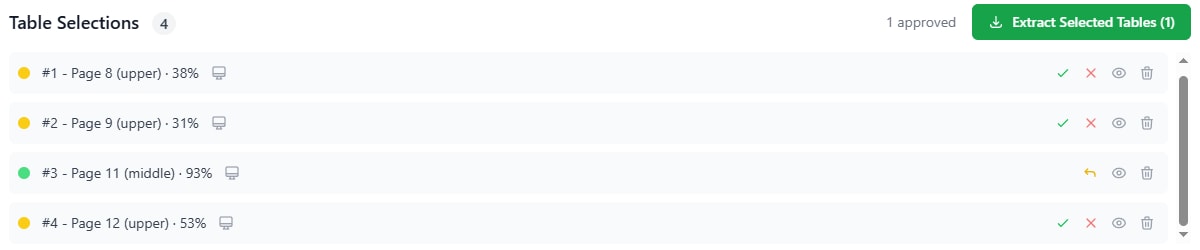
Every detection is also listed below the spread, with its page, its position on the page, and the detector’s confidence. From the list the user can approve or reject a detection, undo either decision, preview it, or delete it. In select mode, the user can draw a box around a table the detector missed. Only approved regions are extracted.
Boxes drawn in the browser are converted to PDF coordinates for extraction, and detector boxes are converted back to be shown on the page.
Extraction libraries
The 2021 engine read every region with Camelot in stream mode. Tablescan runs each detected region through several libraries and keeps the best result:
| Library | Methods | Suited to |
|---|---|---|
| Camelot | lattice, stream | Tables with ruled lines (lattice) or columns aligned by whitespace (stream) |
| pdfplumber | lines, text | Born-digital PDFs with a clear structure |
| PyMuPDF | lines, text | A second line and text method, with different edge cases |
| img2table | image, with Tesseract OCR | Scanned pages with no text layer |
| Docling (IBM) | TableFormer model | Complex tables; off by default because the model is heavy |
Each library can be switched on or off in the upload form’s advanced options. Docling’s model weights are built into the Docker image, so it needs no download at run time.
Each result is scored on five measures, weighted as follows: the library’s own confidence (35%), header detection (20%), cell coverage (20%), row and column regularity (15%), and the validity of numeric values (10%). The highest-scoring result becomes the table’s result, and the others remain available on its card.
After extraction, headers that run over several rows are merged into a single header.
Results
Each extracted table appears as a card with a preview of its contents and CSV and JSON downloads. The card lists the result from each library that read the table, and the user can switch to another if the chosen one is wrong.
Running it
Tablescan runs under Docker Compose as four services: the Django web app, a Celery worker, Redis as the task broker, and PostgreSQL. Detection and extraction run as Celery tasks, so an upload returns at once and the report page shows the job’s status while the worker processes the pages. Each report belongs to the user who uploaded it, and users see only their own reports.
To try it, clone the repository, start the containers, then open http://localhost:8000 and register an account:
git clone https://github.com/famesjranko/tablescan.git
cd tablescan
make docker-dev
The Compose setup is for local use. It runs Django’s development server with debug mode on.